About Princess Rinrin’s Information Security Classroom?
This is an online classroom to learn about information security through familiar conversations that are common in university life, which is made available by the National Institute of Informatics (NII).

Learning Recommendations
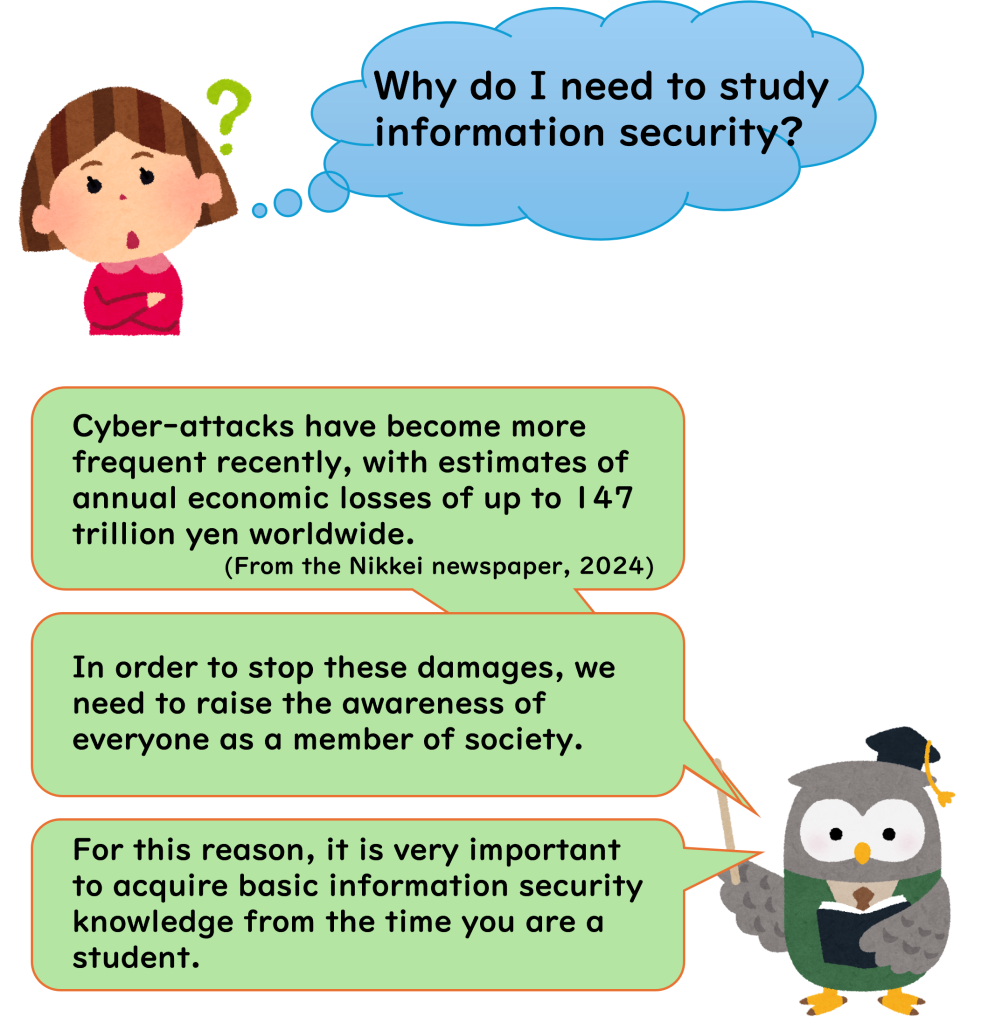
Learning Methods
※Please refer to the manual below for details on how to take the course and how to use the system.(Japanese Only)
https://contents.nii.ac.jp/lms_support/manual/learner
Here is a brief overview of the enrollment process. (Please note that the design may have changed.)
1.Access the National Institute of Informatics (NII) Gakunin LMS Portal.
https://lms.nii.ac.jp/?lang=en
2.Click “Log in” in the upper-right corner
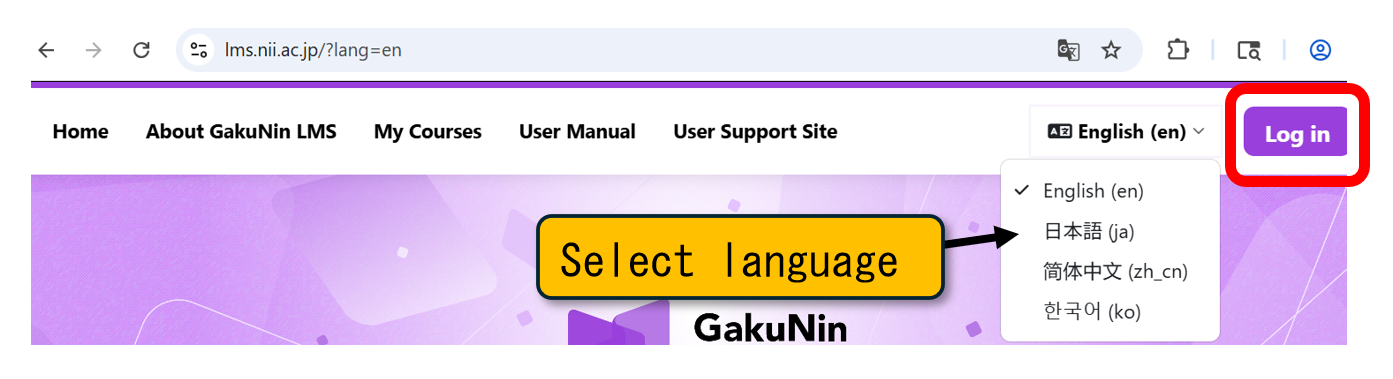
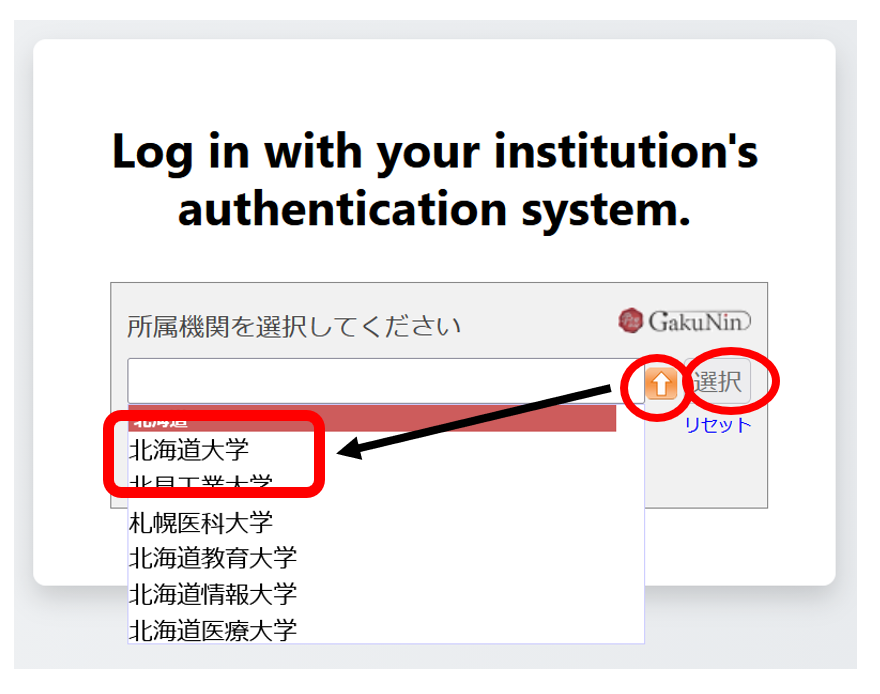
3.Click the arrow button, select “北海道大学(Hokkaido University)” from the drop-down list, and click “選択(Select).”
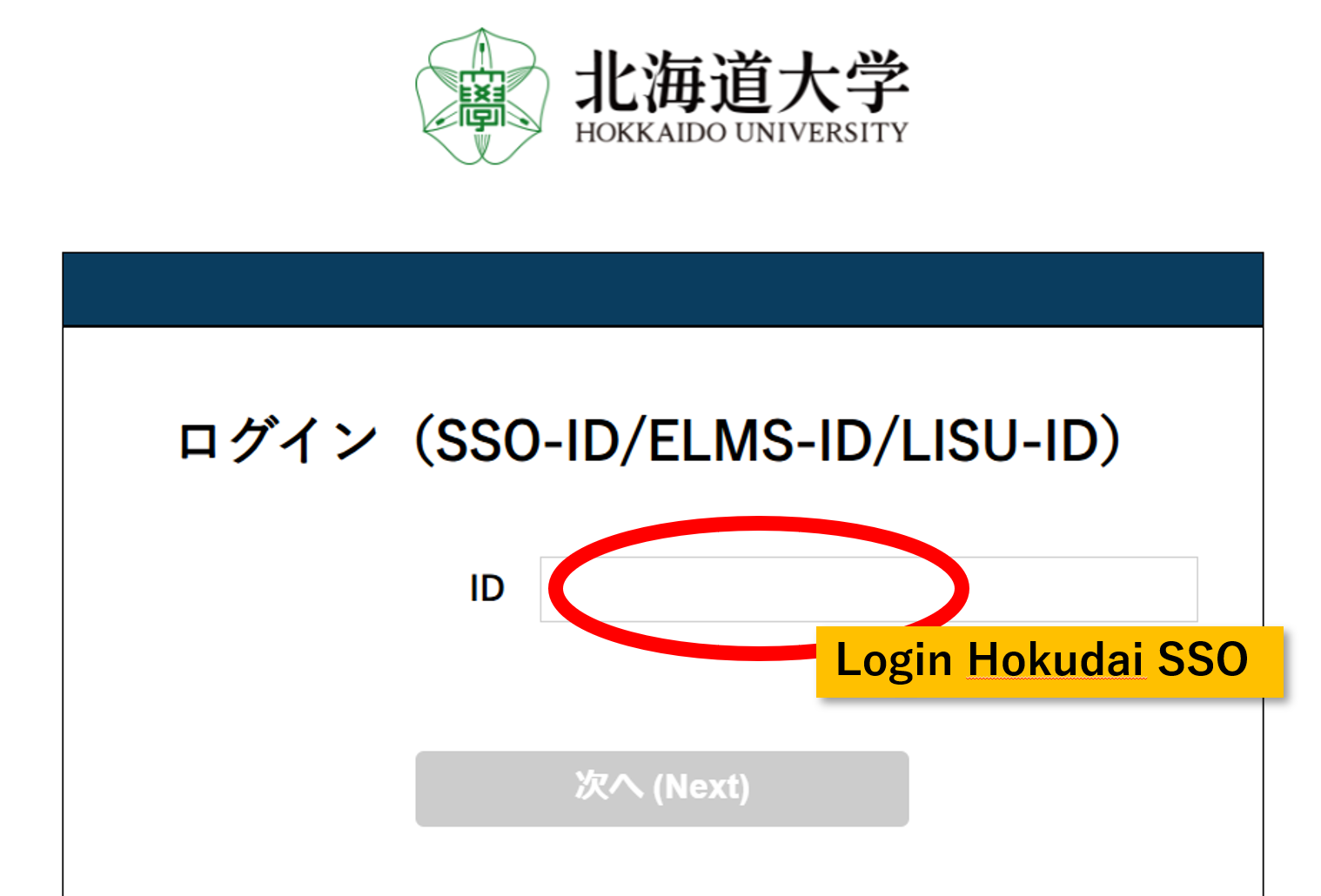
4.Log in via the SSO system.
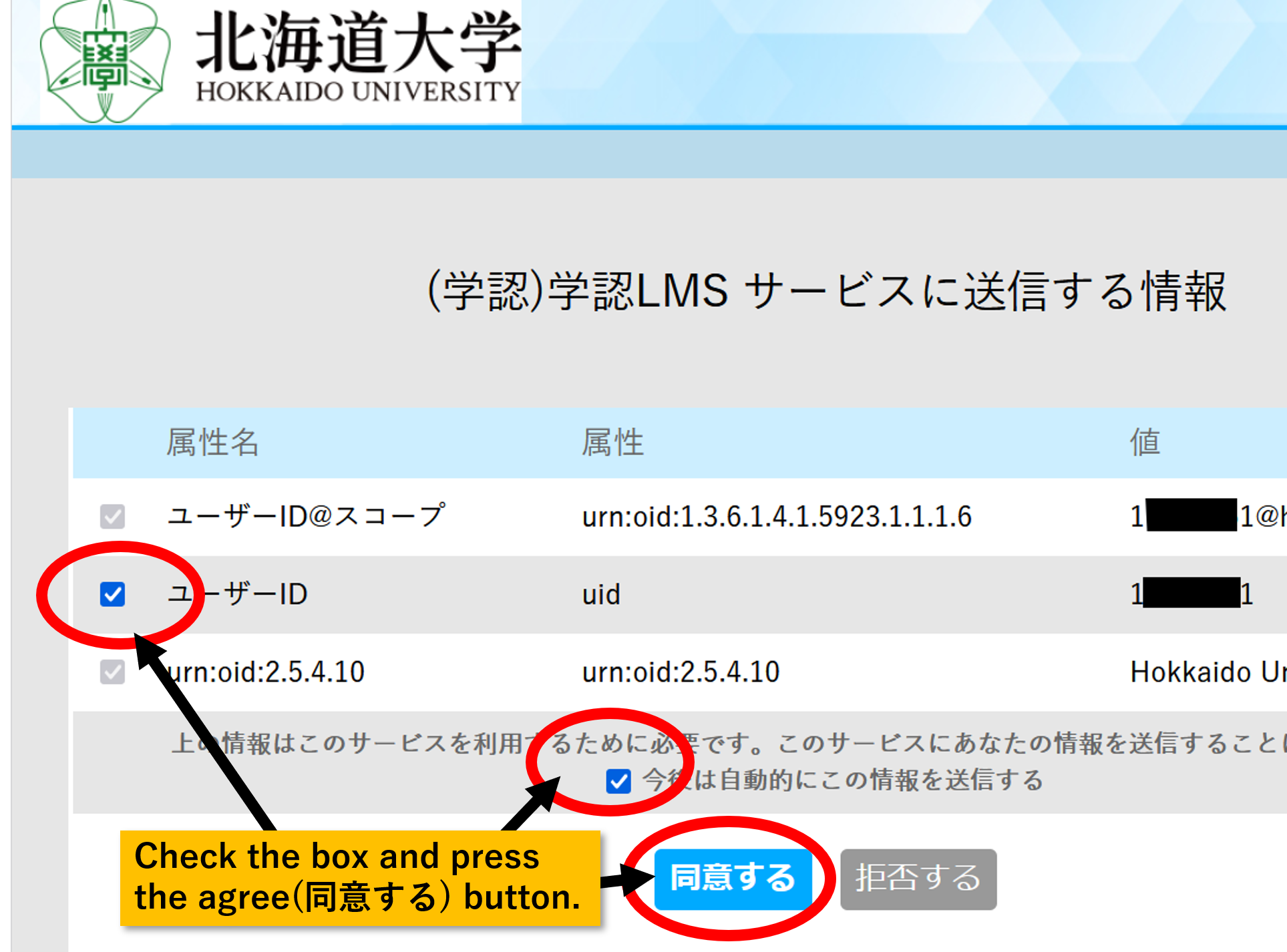
※If the following screen appears, make sure both checkboxes are selected, then click the “Agree” button (first time only)
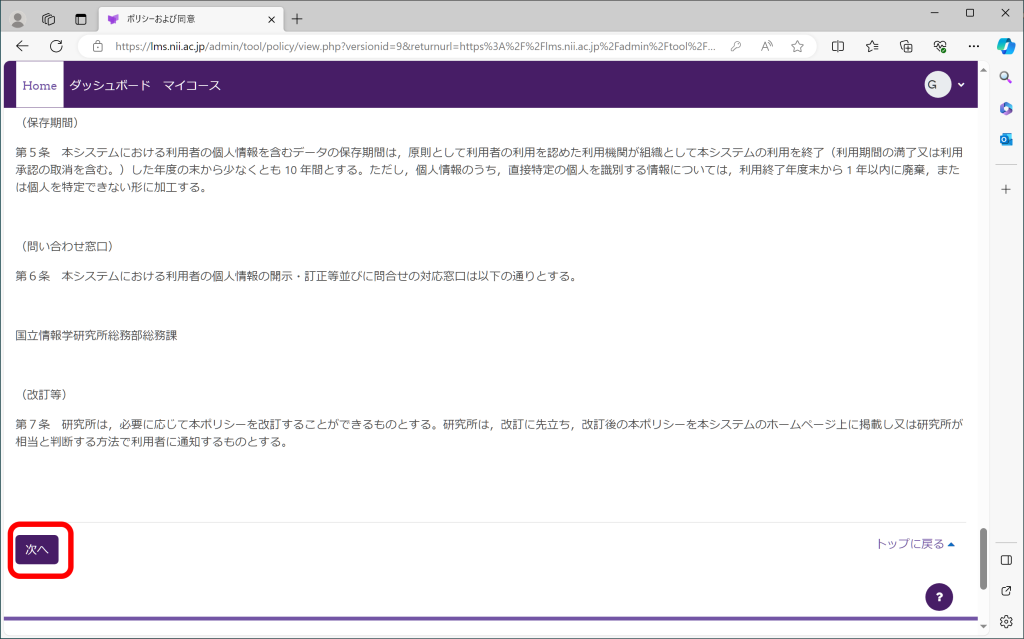
5.Review the terms of use for the Gakunin LMS and click “Next” (first time only)
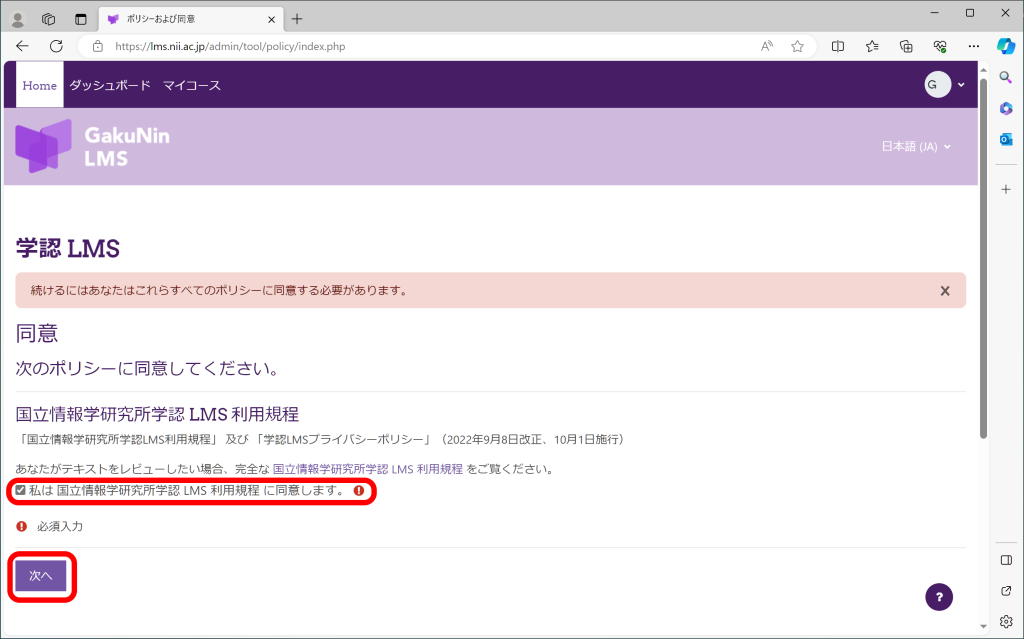
6.Check the「私は国立情報学研究所学認LMS利用規定に同意します。」 box and click “Next” (first time only)
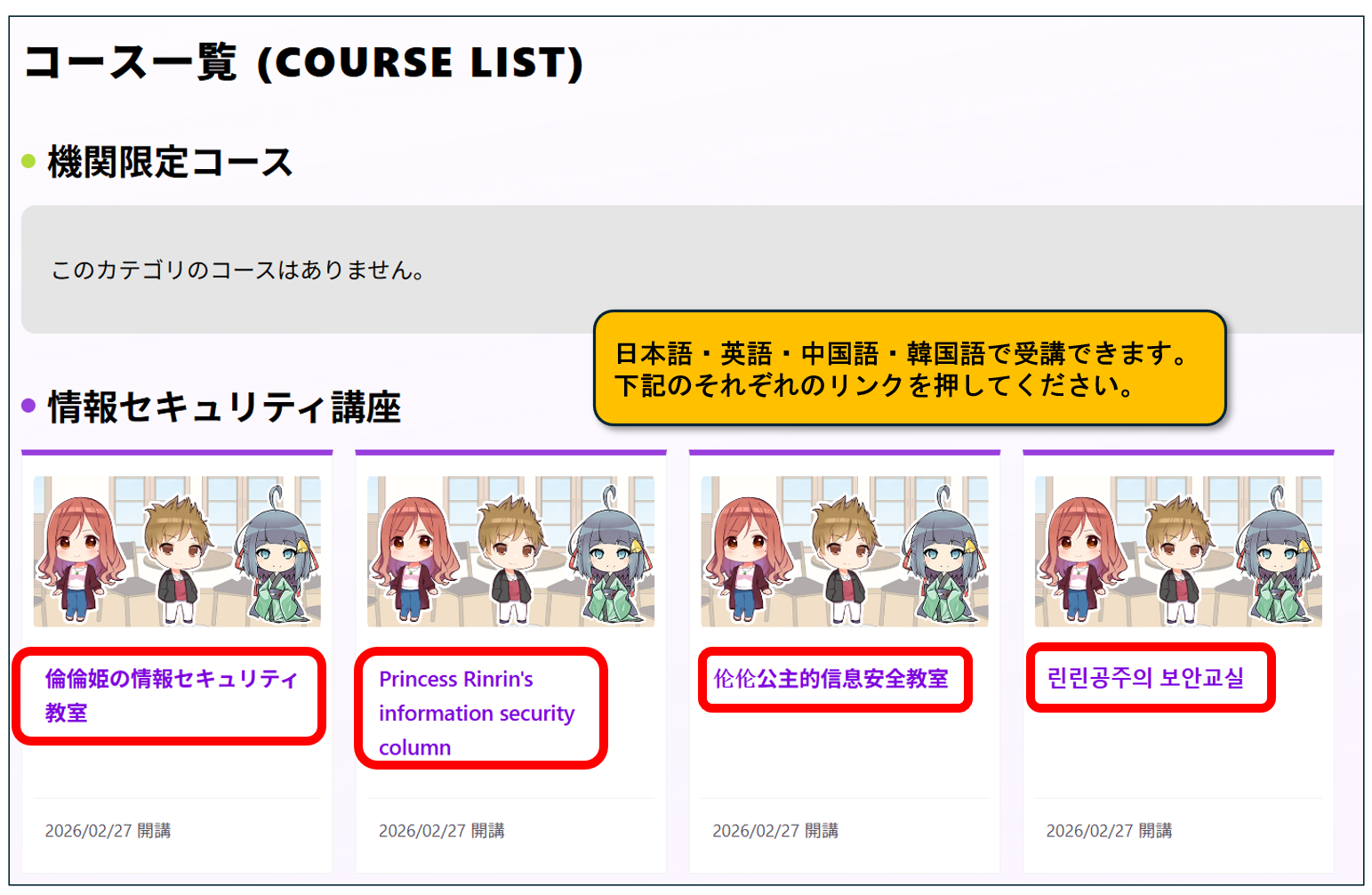
7. Click the icon for the language you want to study.
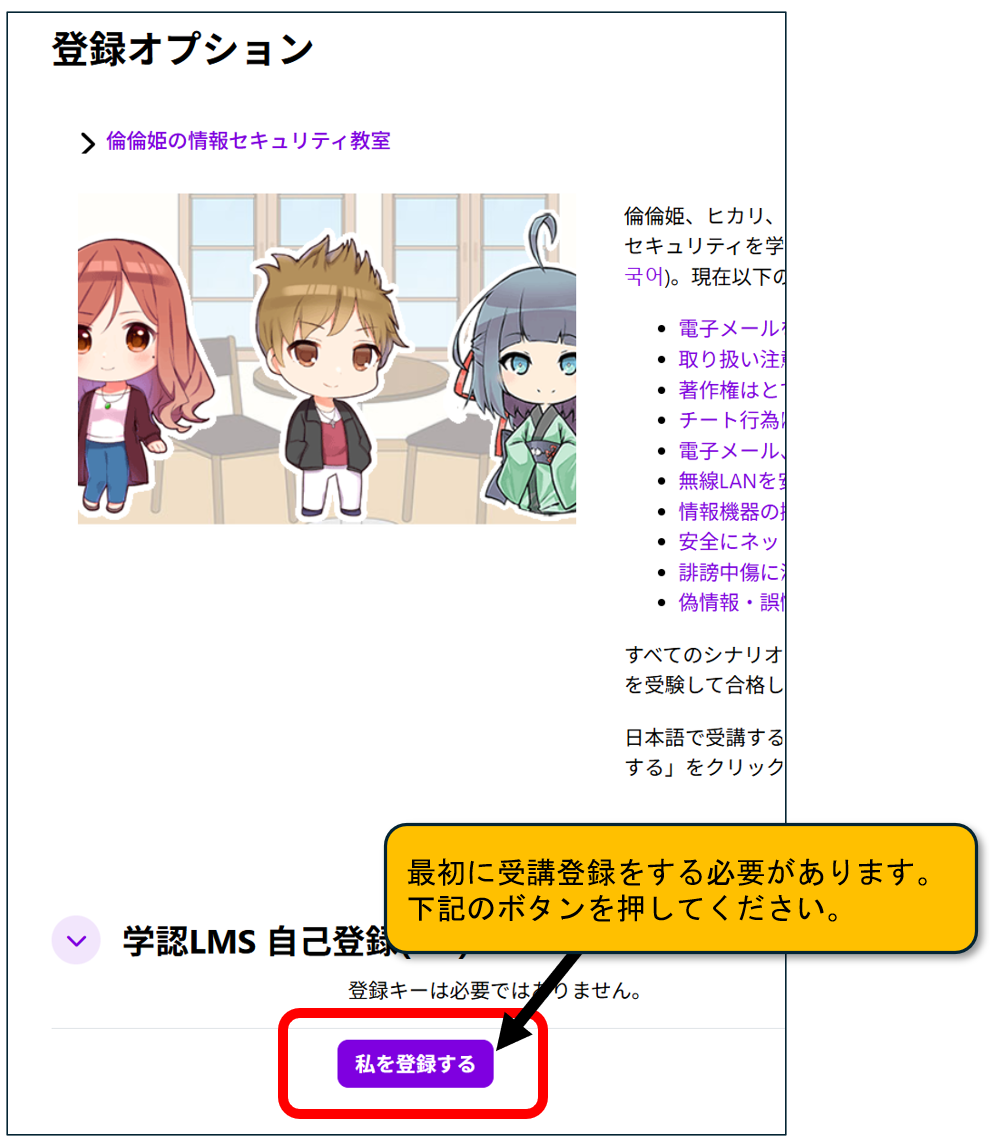
8. Scroll to the bottom of the screen and click the “Enrol me” button.
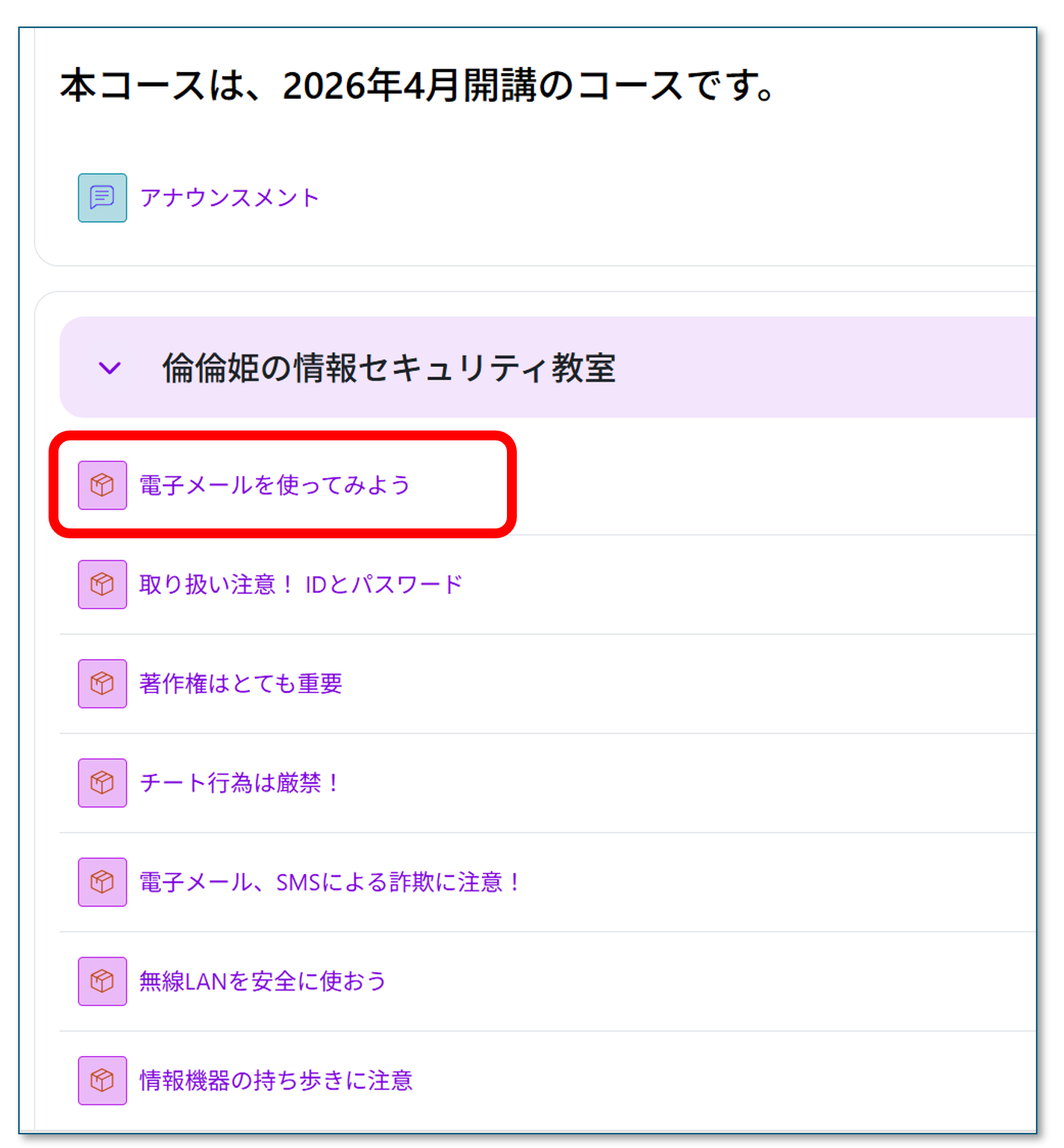
9.Click on a topic in “Princess Rinrin’s Information Security Classroom”
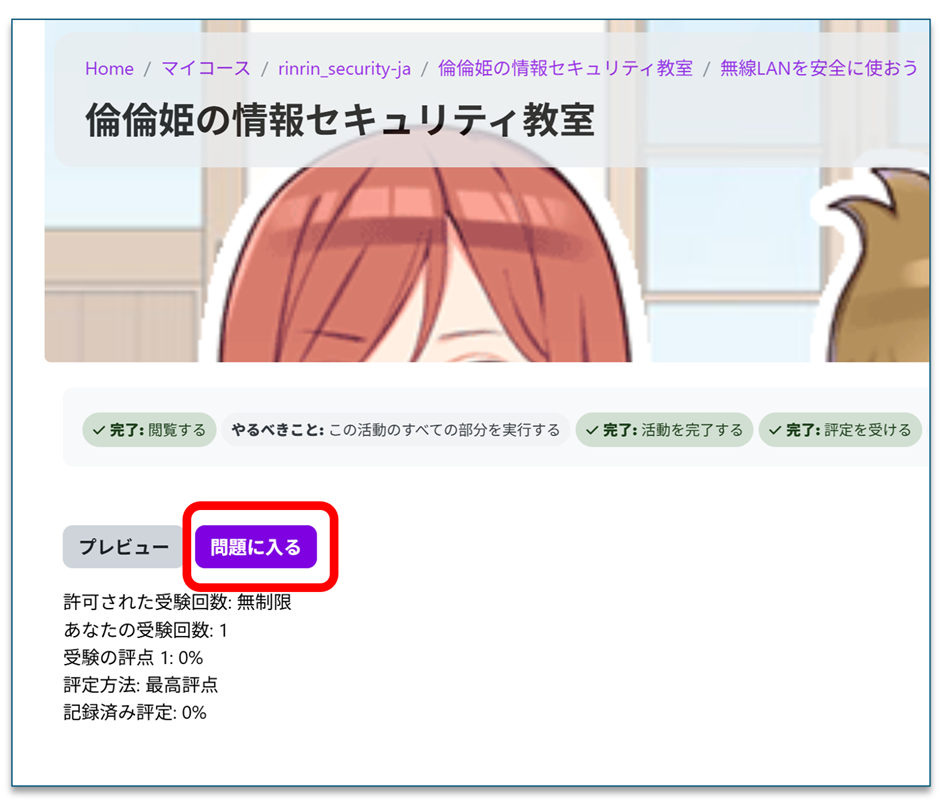
10.Click “Enter” (*Note: Clicking “Preview” allows you to review the content, but it will not be recorded in your course history.)
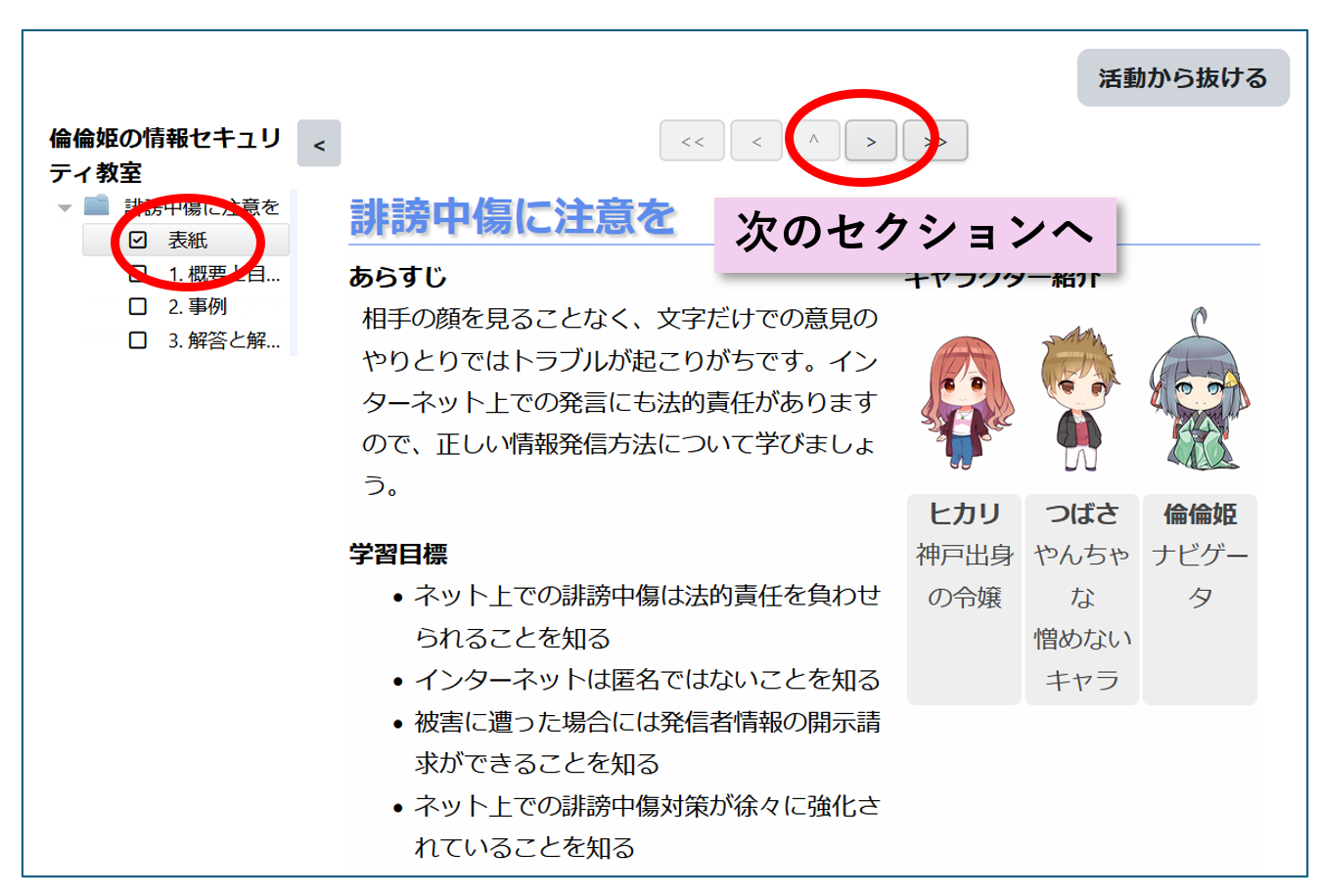
11.The first time you take the course, the cover page will appear. Click the “>” button at the top to proceed to the next page.
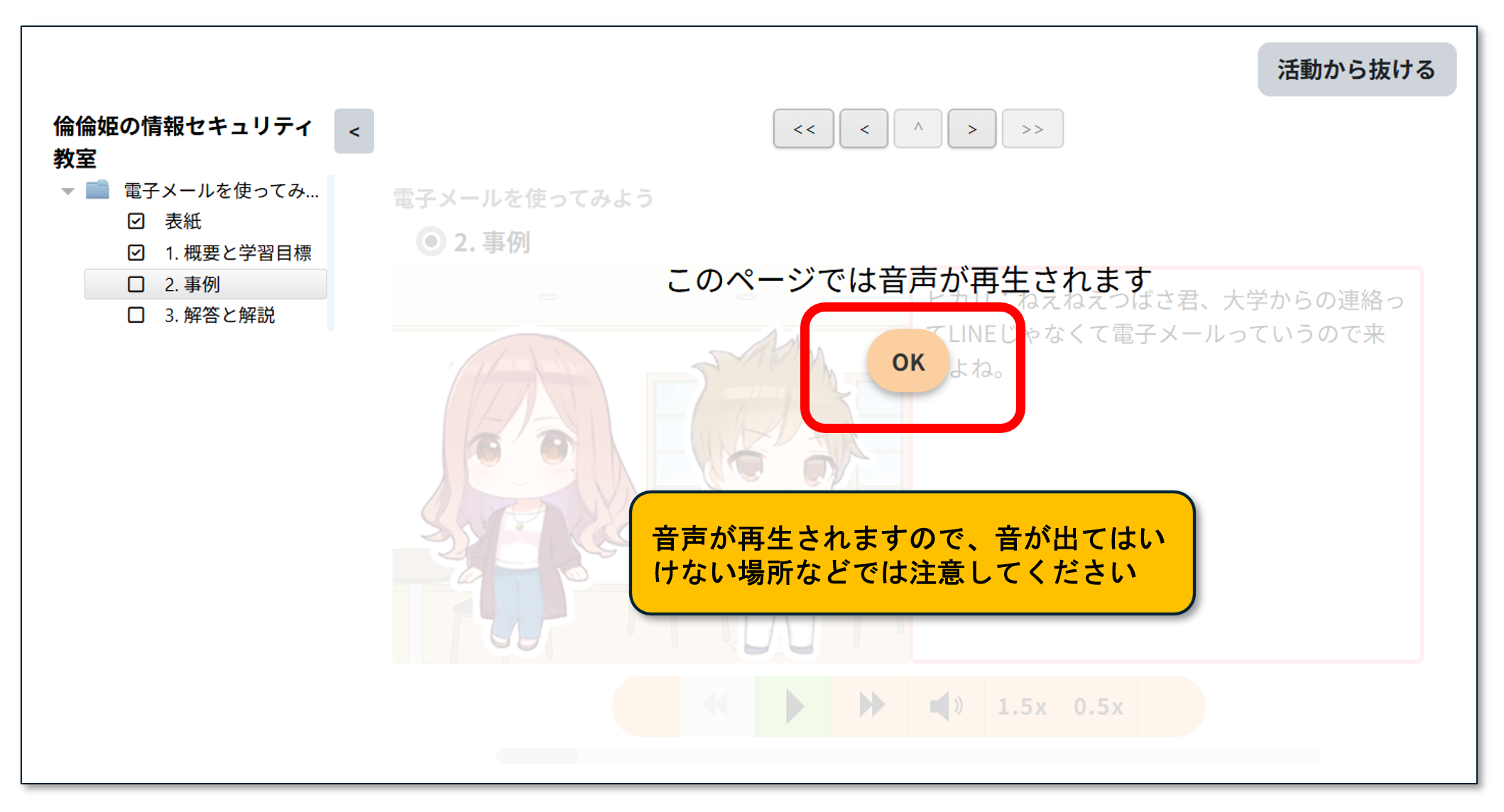
12.Click “OK” on the voice prompt to begin the course.
13.Click the “>” at the top of each section to proceed with the course. Here are the instructions for navigating the screen:
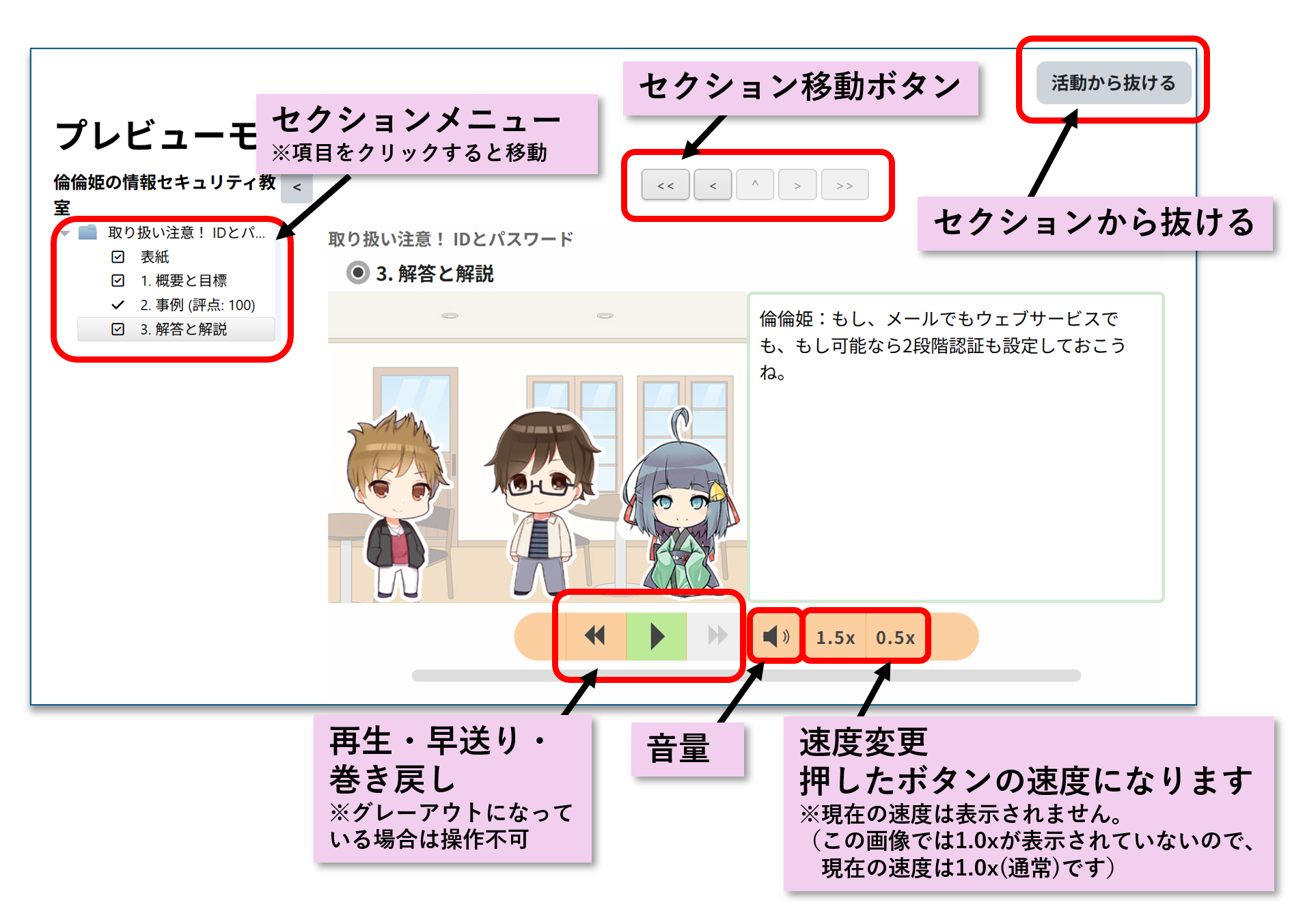
Course Completion and Moving on to the Next Category.
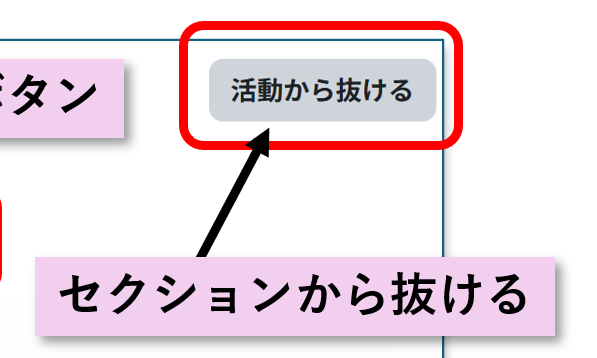
14.Once you have finished the course up to the “Answers and Explanations” section, click “Exit Activity.”
15.As with sections 9–14, you will take the following section.
Final Test
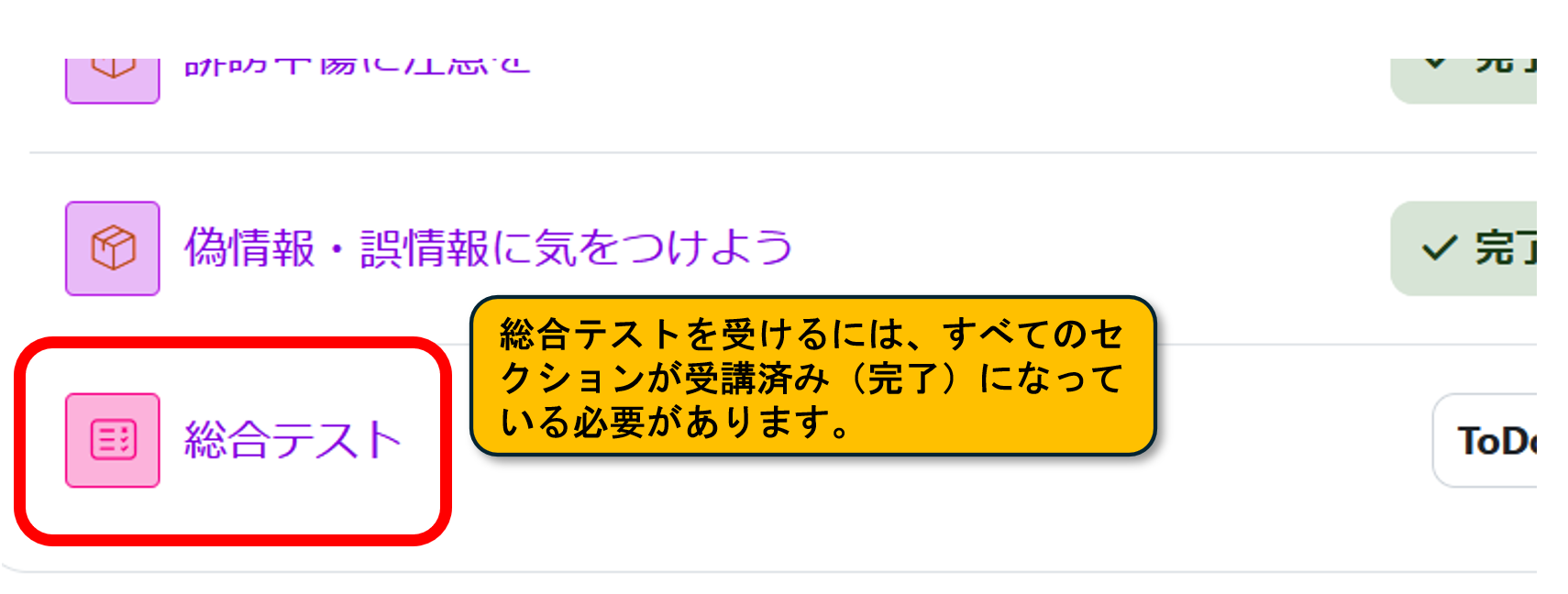
16.Click “Final Test” at the bottom of the section (Note: All sections must be marked as “Done”)
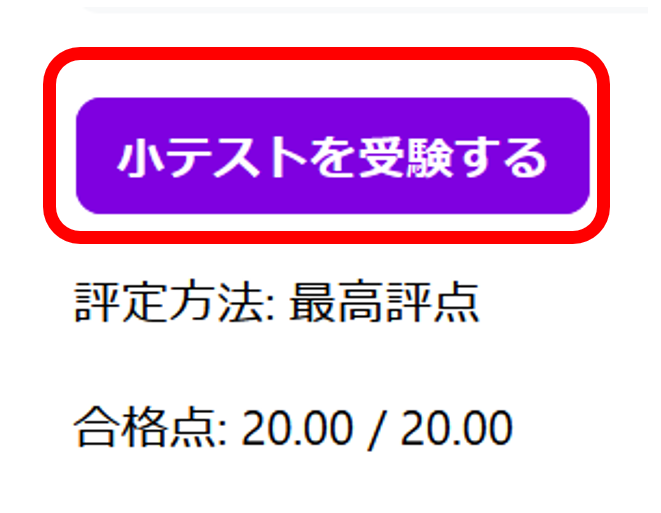
17.Click “Apply”
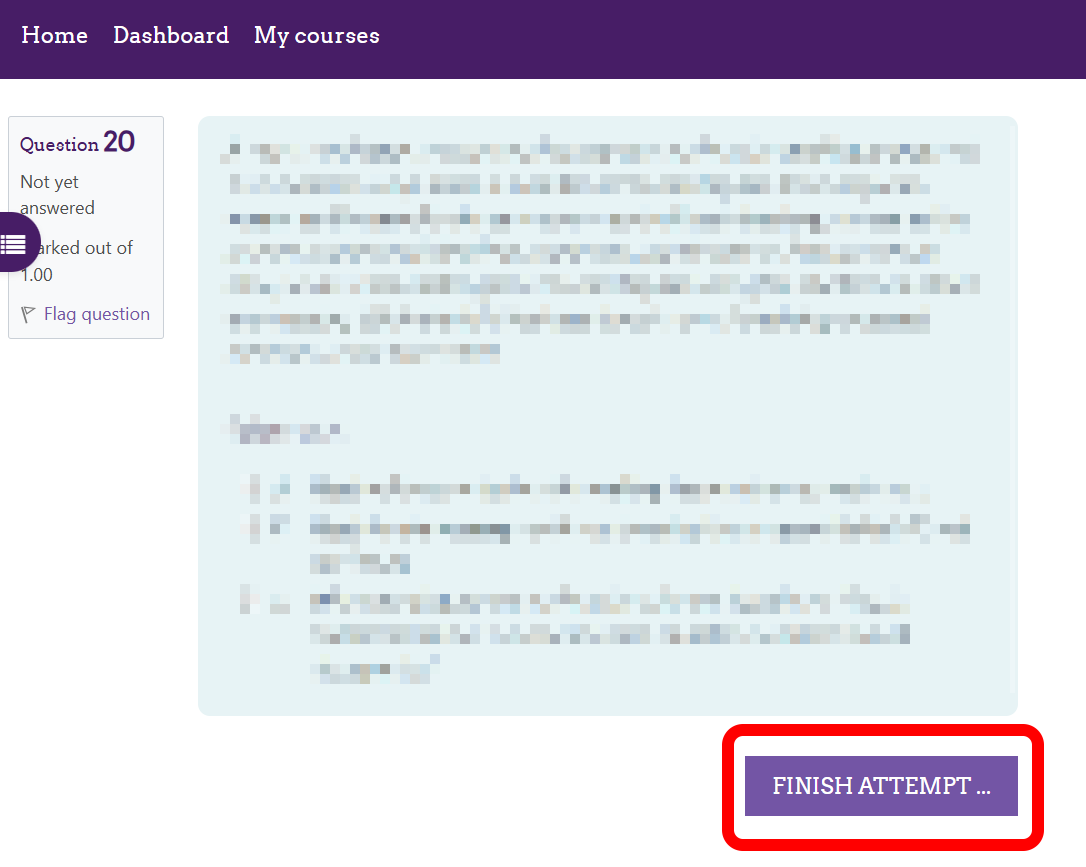
18.Answer the questions and click on ‘FINISH ATTEMPT…’.
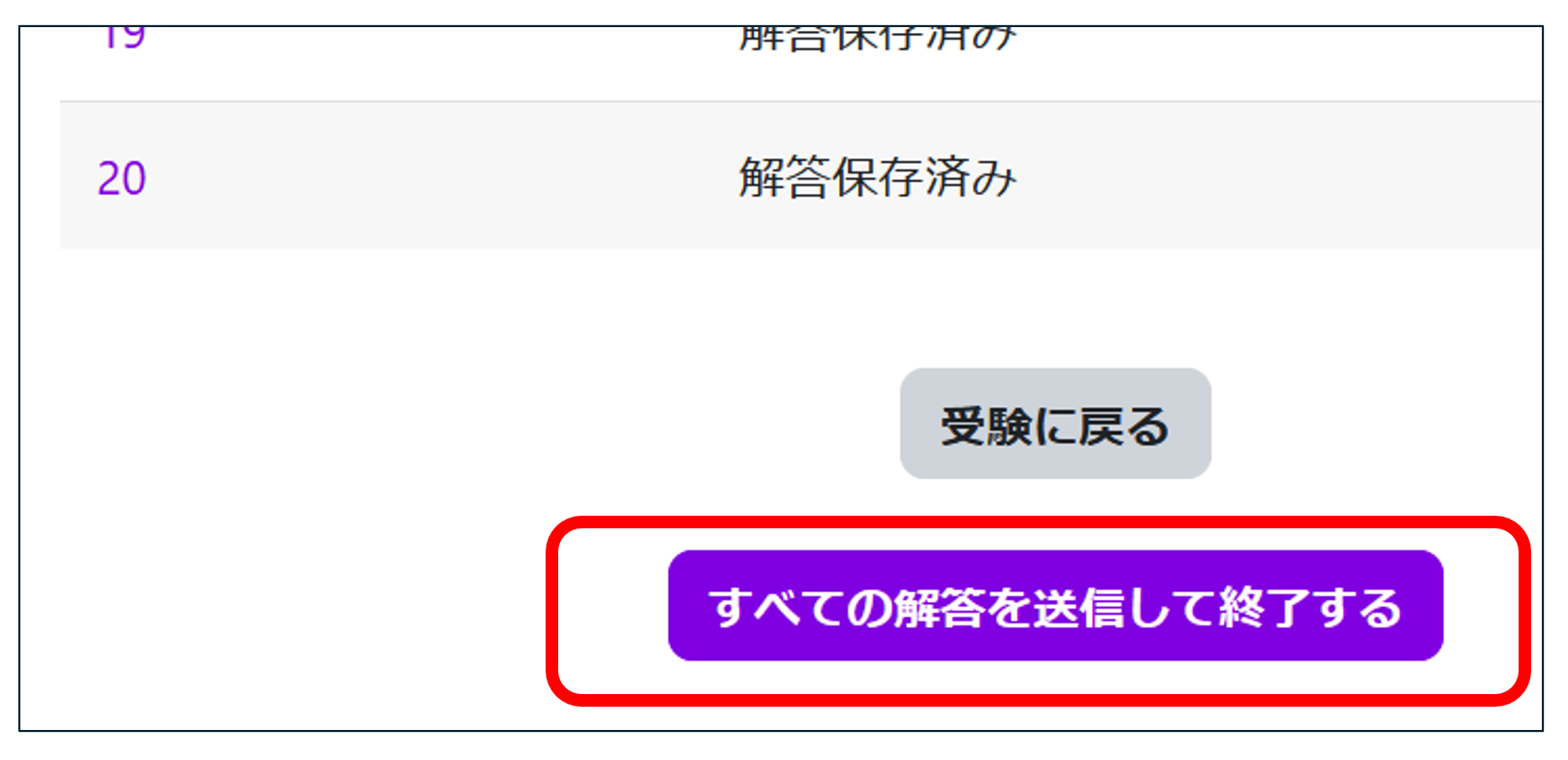
19.Check on the content and ‘SUBMIT ALL AND FINISH’.
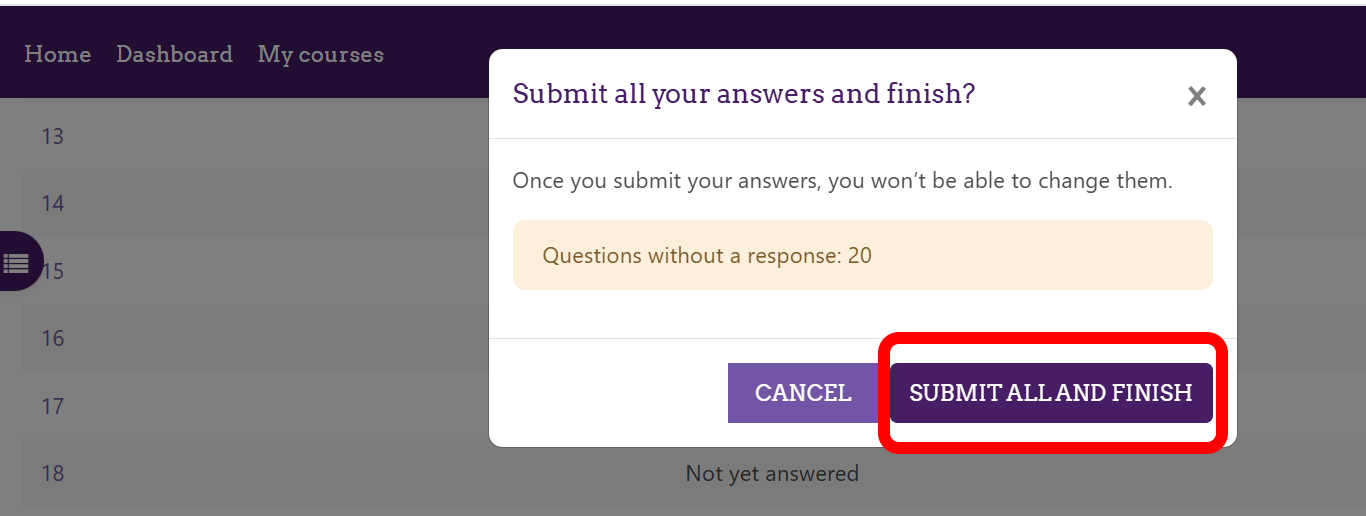
20.Confirm the pop-up display and Click on ‘SUBMIT ALL AND FINISH’.”
Contact
ICT Security Office, ICT Promotion Office.
E-mail:security@oicte.hokudai.ac.jp